

A User-Friendly Digital Experience
We’re excited to introduce a new catalog that provides easier access to Poudre Libraries’ collection of over 2.3 million items in Spring 2026! The new catalog improves the digital experience with a cleaner interface and quicker access to search results. A few highlights of the new catalog include:
- Filter easily by material type in a catalog search.
- Adaptable search that adjusts for small spelling mistakes while searching.
- Check out digital items from the catalog search without going to another website or app.
- View physical and digital checkouts in My Account.
- Create personal item lists, ratings, and comments on materials to share with others.
Get Started with a Tour
This short video provides an overview of the new catalog.
Video Directory
read this video's transcript
0:00
We’re so excited to introduce our new library catalog that offers a variety of features that improve the way you search, manage, and access library materials.
How Do I...?
How do I find the new catalog?
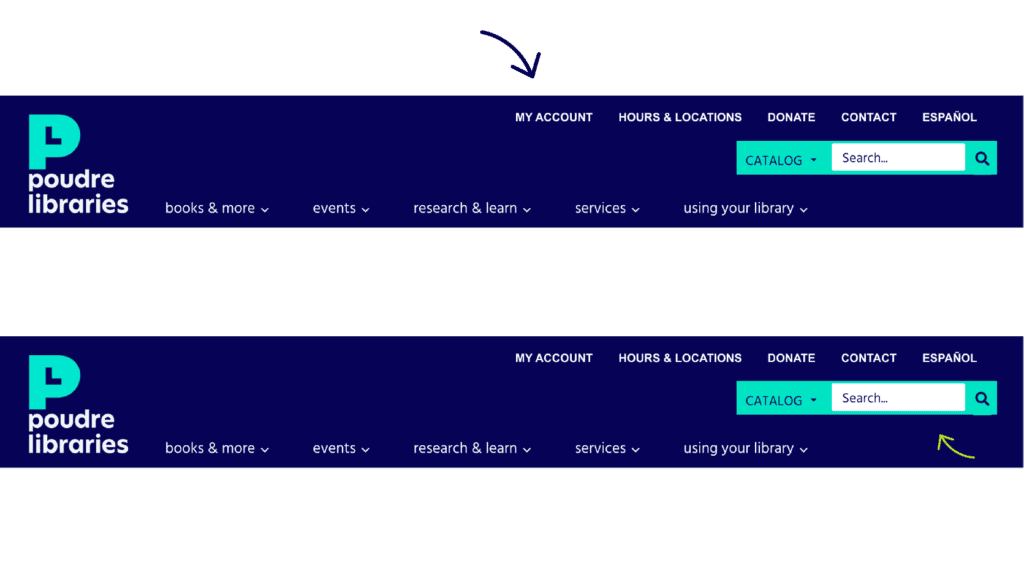
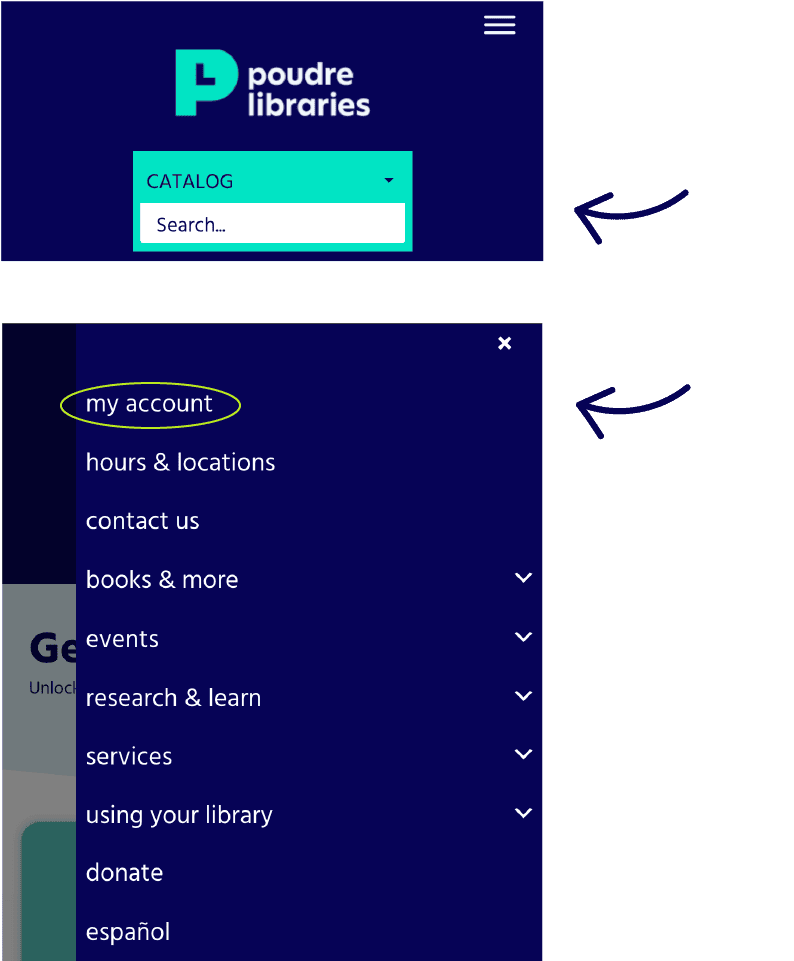
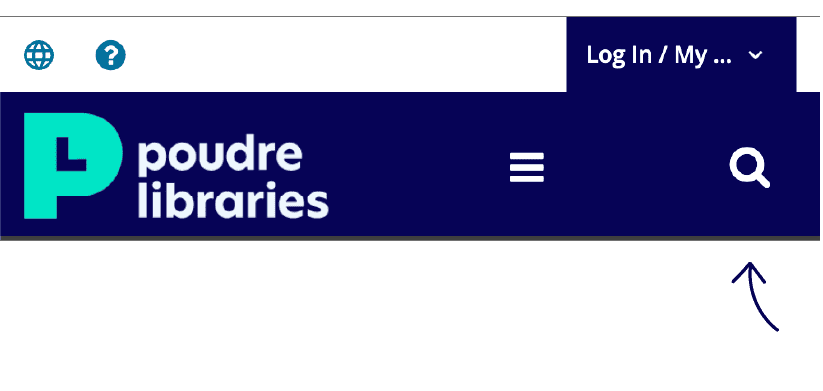
You can find the new catalog by clicking “My Account” in the top menu of the library’s website. You can also use the catalog search in the top right corner of the website to access the catalog.
Catalog Search on Library Website (Mobile Phone)
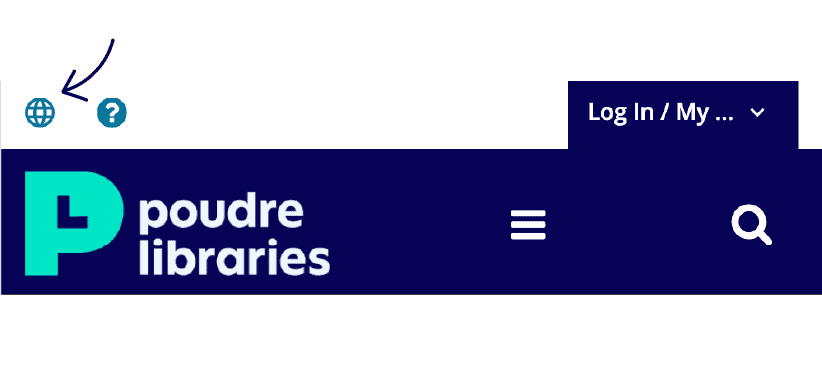
How do I change the catalog’s language?
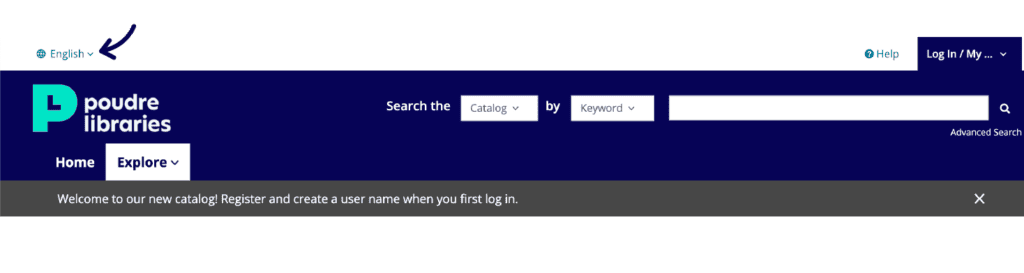
Hover over “English” in the top left corner of the library’s catalog and select English or Español.
How do I set up an account for the new catalog?
See a video walkthrough of setting up your account above. If it is your first time using the new catalog, you will be prompted to set up a BiblioCore account using your existing library card number and PIN.
- Click “My Account” in the top menu of the library website.
- Enter your existing library barcode number and PIN on the login screen.
- Click the Continue to Account Setup button and verify that your information, such as email and date of birth, is correct.
Note:We ask for date of birth so we can comply with age-related privacy laws that protect children under the age of 13.
- Click Continue.
- Enter a username. Usernames will show on any social content you choose to post and is shared across all BiblioCore catalogs if you choose to make your activity public. There are over 10 million users throughout North America, so it may take a couple of tries to find a unique username that works for you.
Minors under the age of 13 will be prompted to choose a color and an animal to create their username which will be followed by a number automatically generated by the catalog. This protects the identity and privacy of minors and complies with age-related privacy laws.
- As the catalog is a new service Poudre Libraries is using, you need to accept the terms and conditions by selecting the checkbox.
- Click Complete Account Setup.
- You will see a confirmation page with your new username. From here, you can continue your account. You will also receive a confirmation email.
Looking for more help? Explore additional information about setting up your account and logging into the new catalog.
How do I search the catalog and get specific search results?
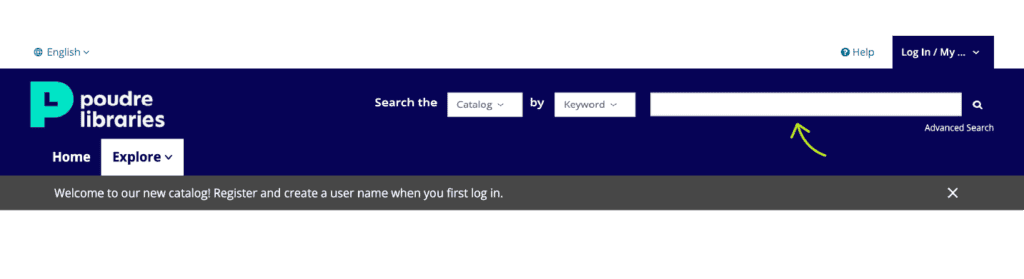
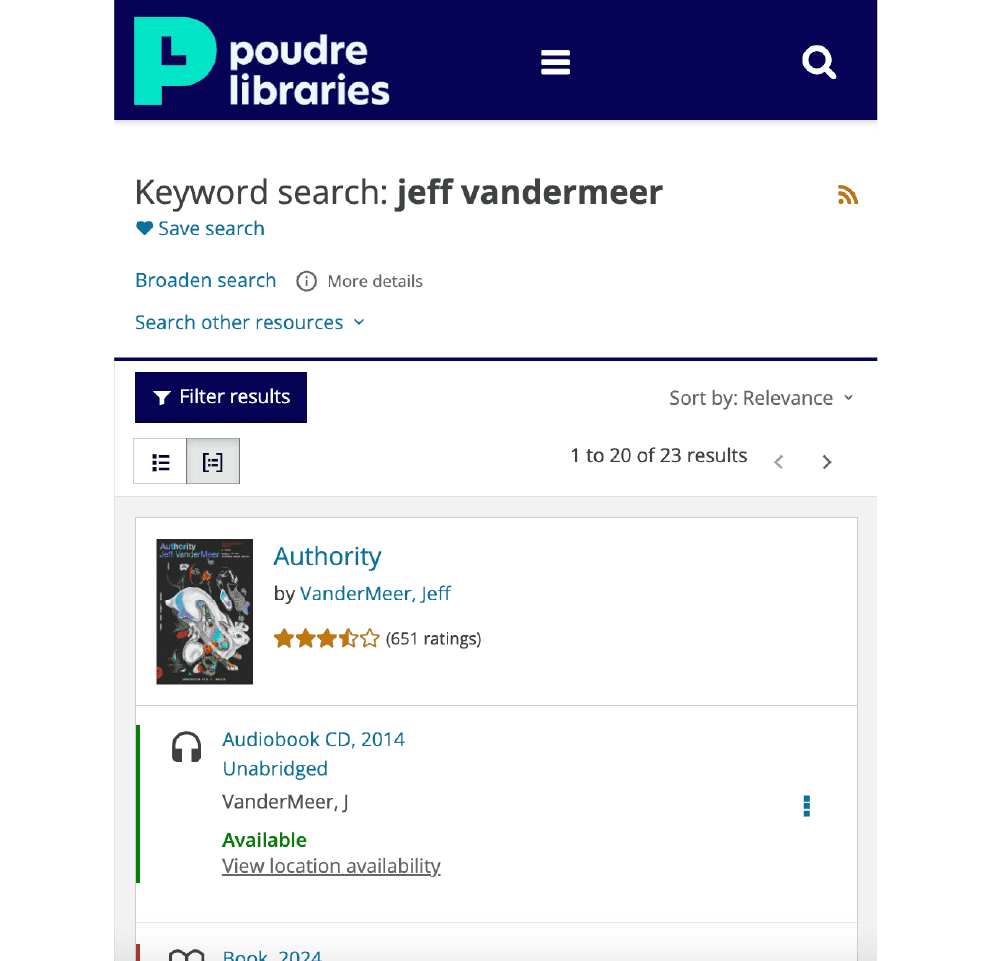
The new catalog search is designed to match how you think and search the web! Search results will populate results with relevant content and clearly labeled filters.
The search bar is located in the top right corner of the site. Clicking on search will expand the search bar. You will notice that you can search the catalog by the following categories: Keyword, Title, Author, Subject, Series, Tag, List, User, and Broadened Keyword. Using the Keyword search category should help you find what you’re looking for most of the time.
As you type, search results will be suggested to you. If your search has any misspellings, the catalog may make suggestions based on your search terms in your results.
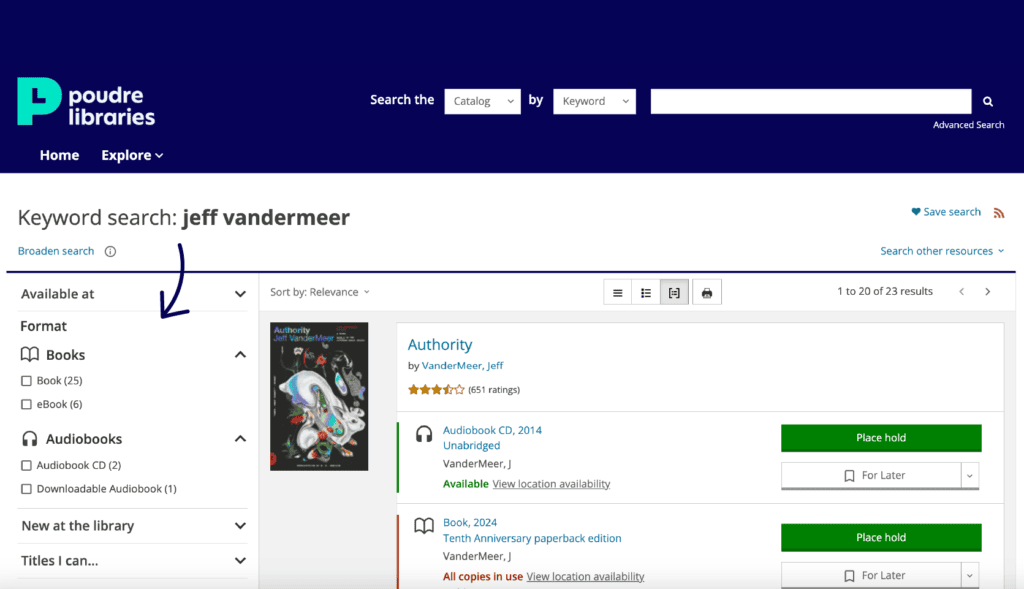
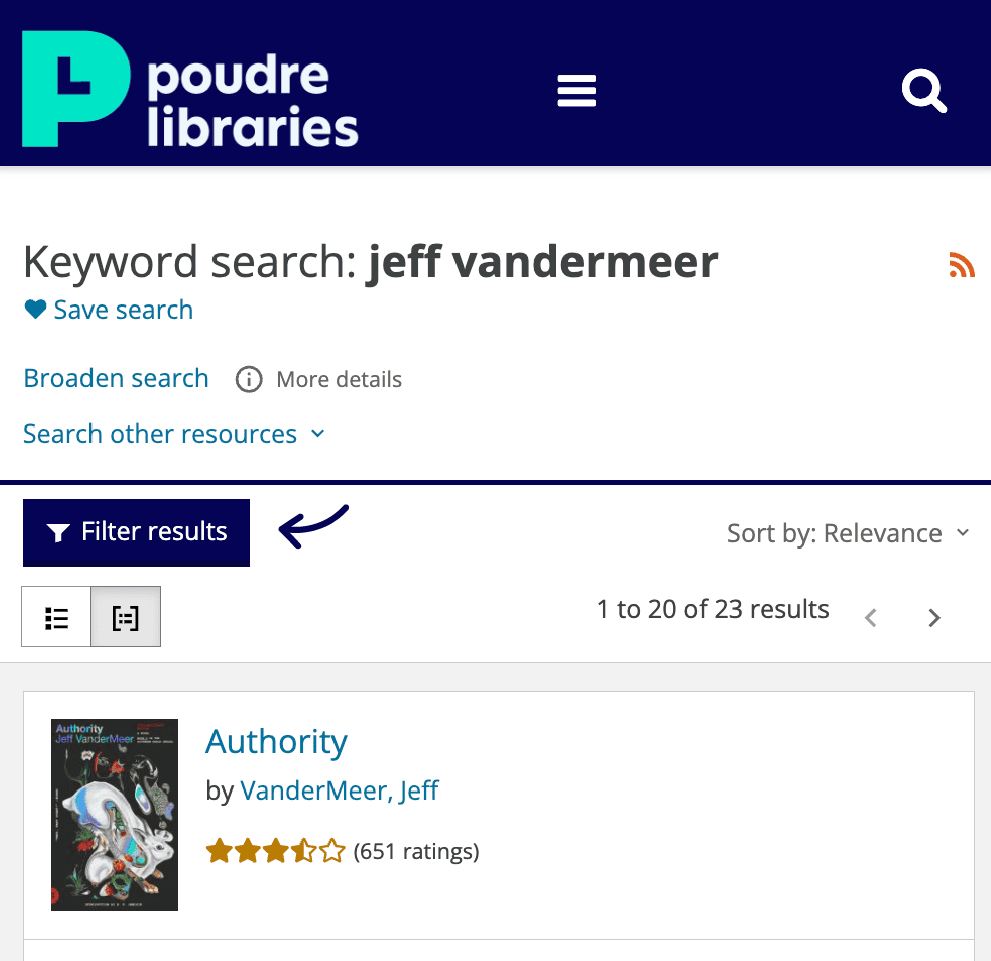
When results appear, you will notice a filter bar on the left side of your screen that can help you refine your results by format, whether the items are new to the collection, the audience for the item, languages, and much more.
Desktop Computer View
Mobile Phone View
For additional help using the new catalog’s search, explore this guide on searching and filtering for the new catalog, including information on how to use Advanced Search to find what you’re looking for!
How do I place holds and view my holds?
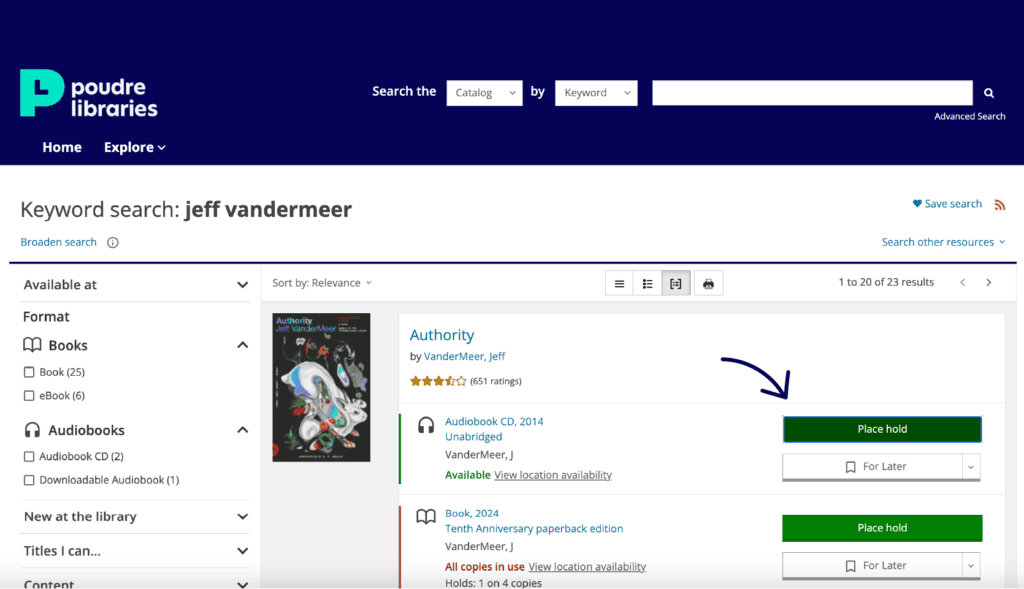
Placing Holds
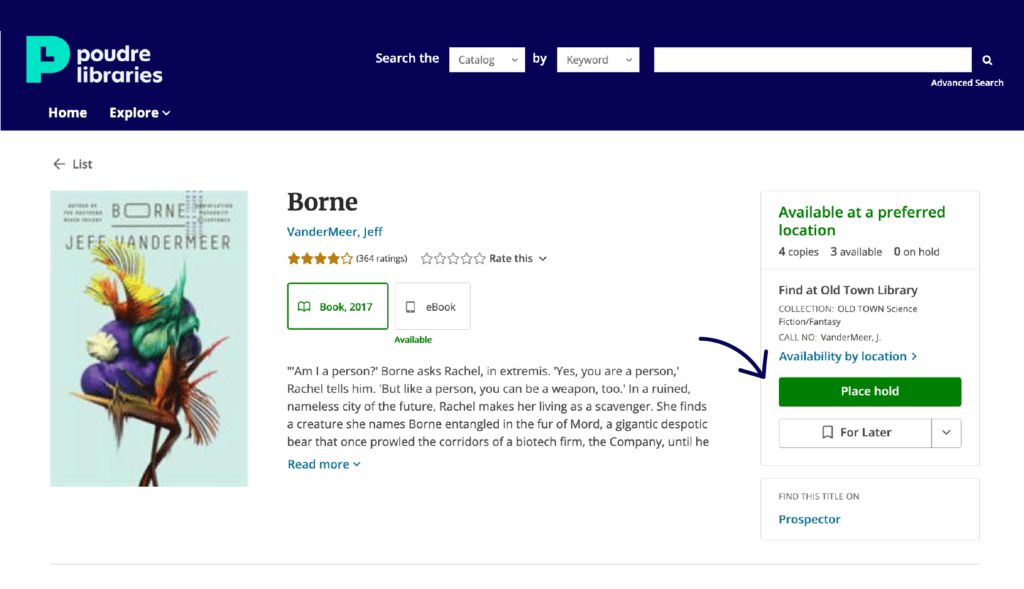
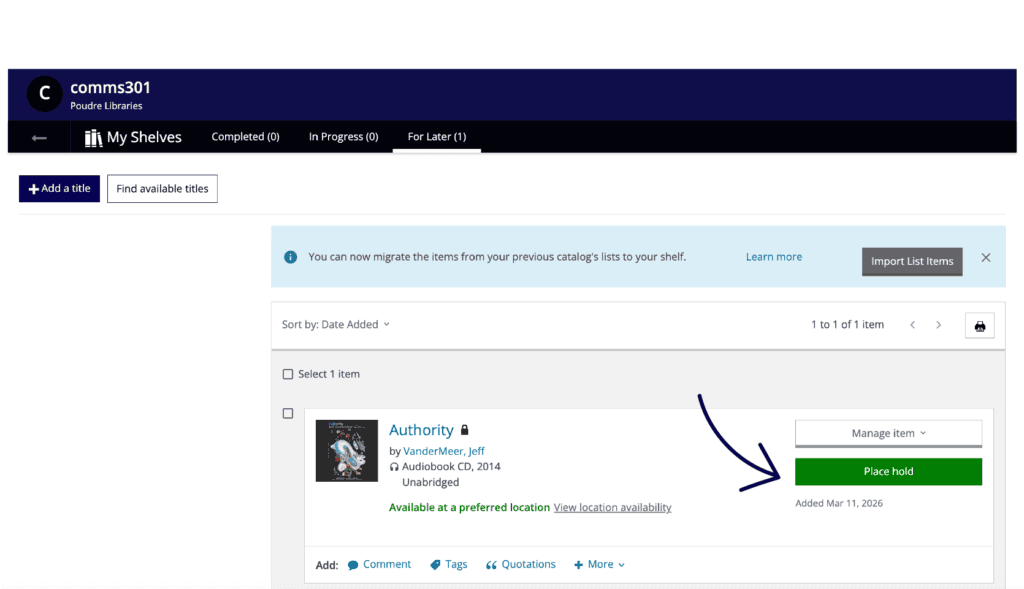
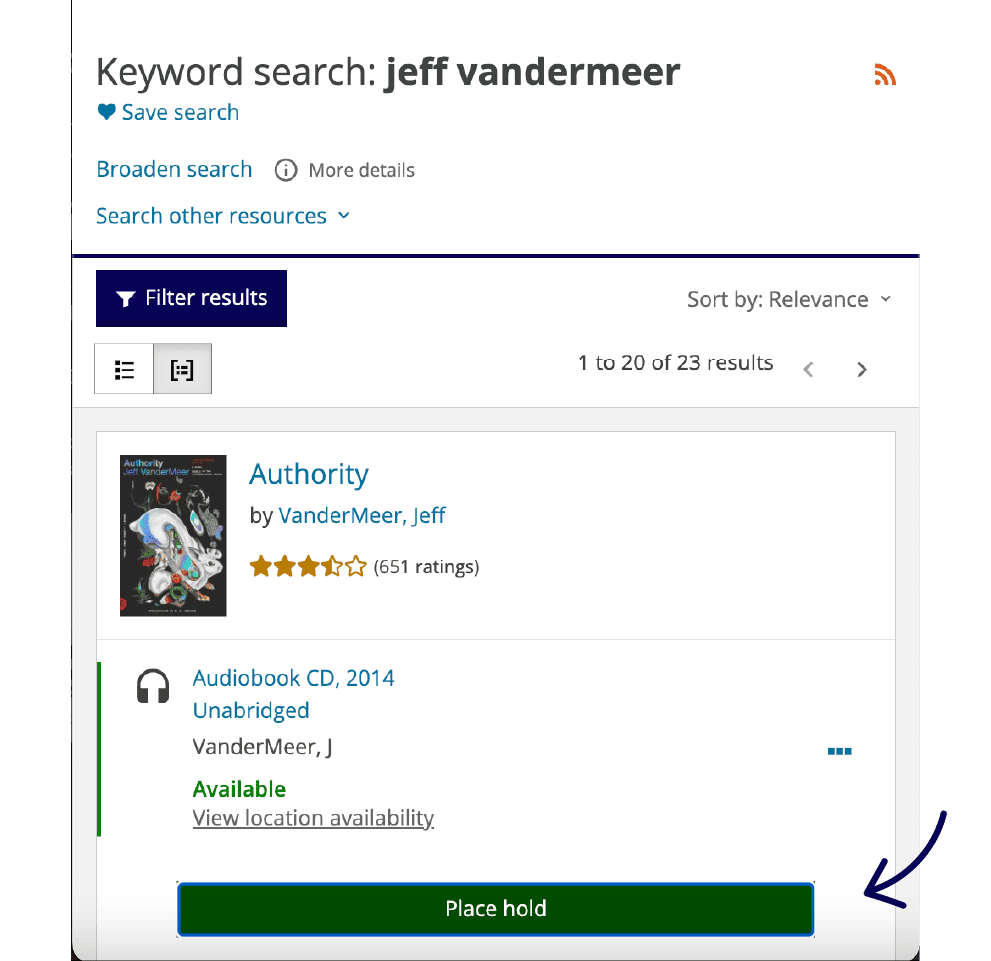
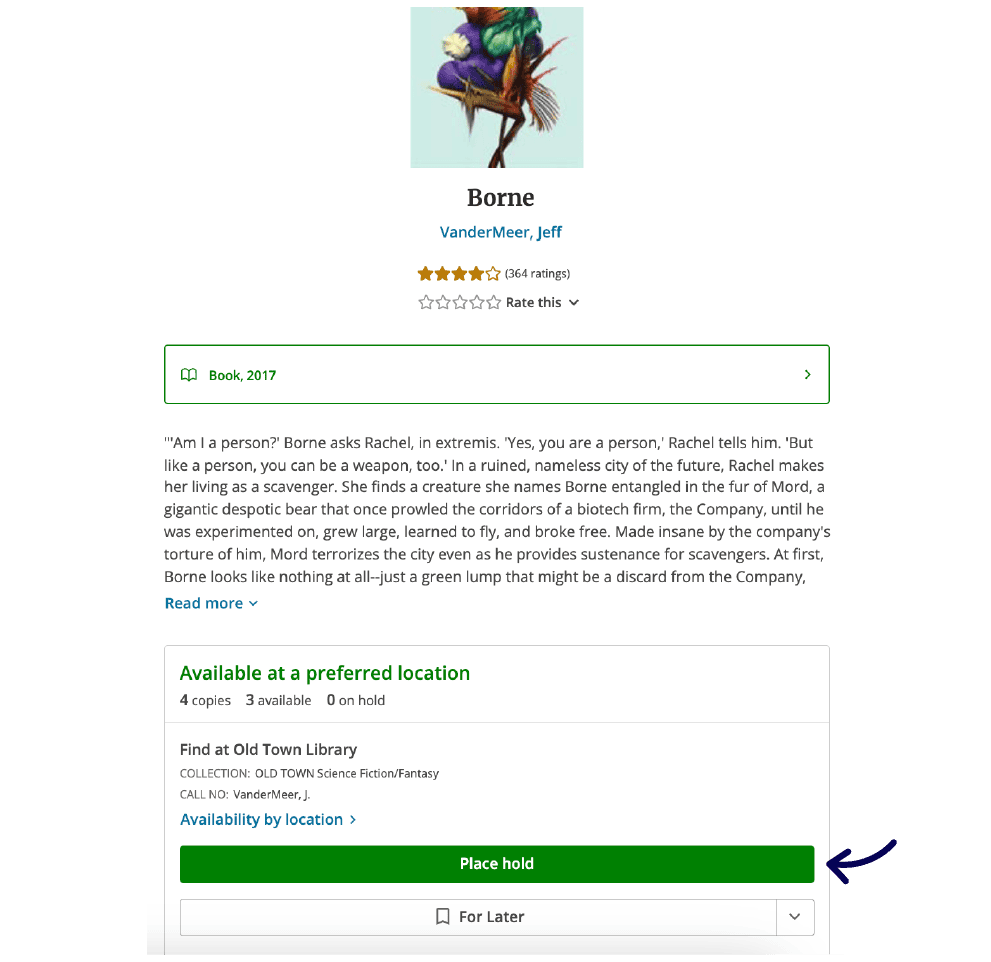
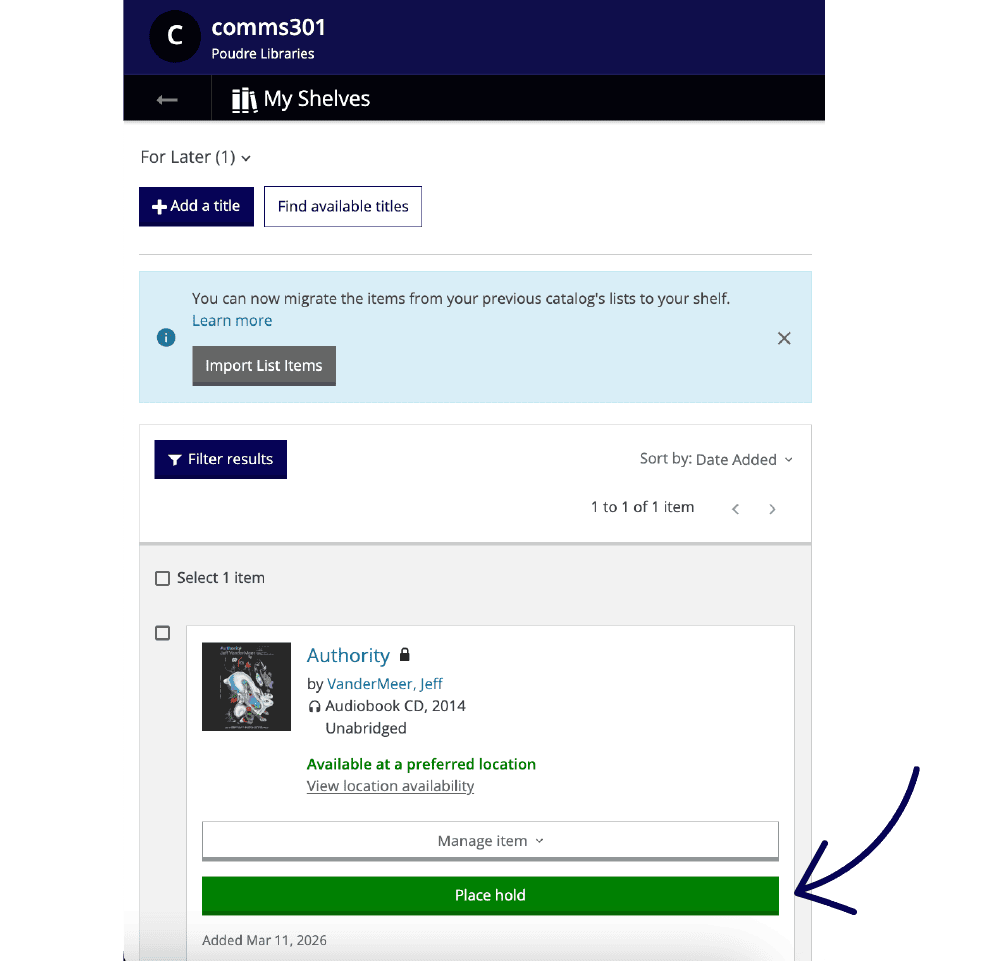
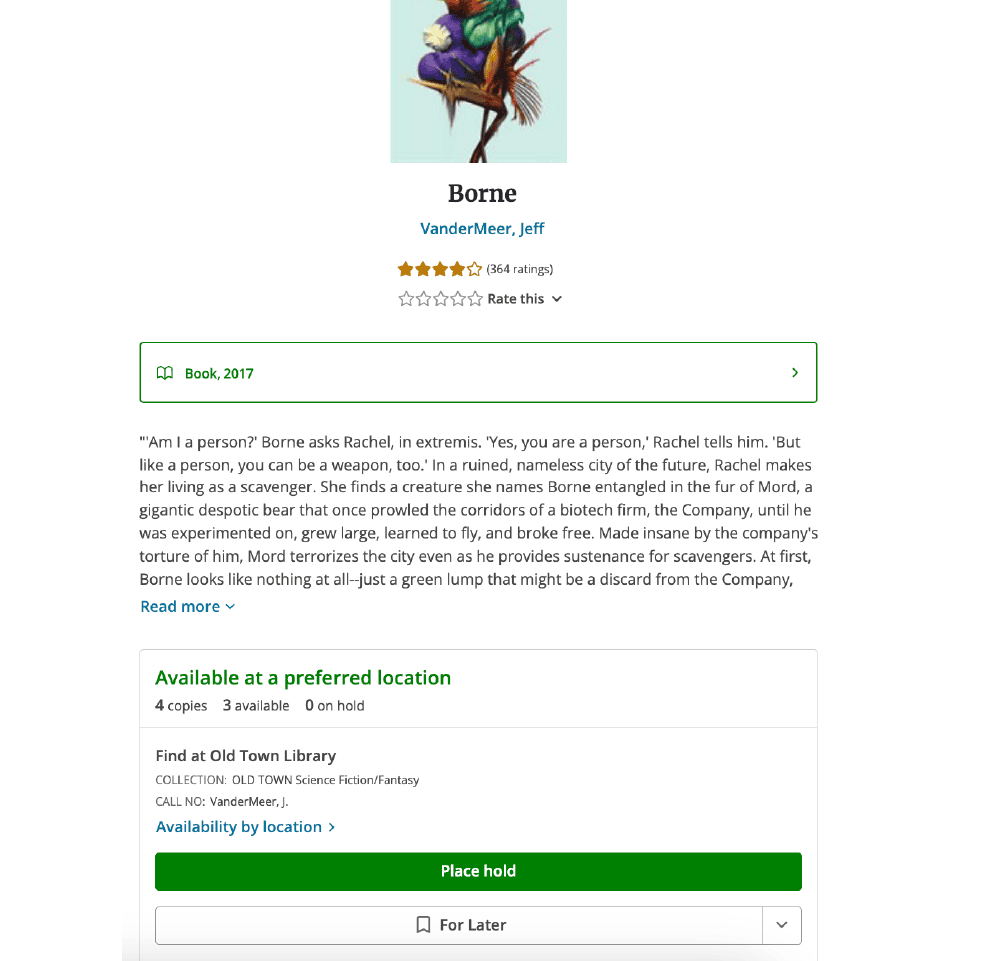
You can place holds from anywhere you see a title, including search results, the title record, shelves, and lists created by your library or other readers.
Desktop Computer View
Mobile Phone View
After clicking the hold button, you will choose your pickup location from a drop-down menu.
Note: If you always plan to pick up at the same location, you can enable single-click holds in your account settings. The next hold you place will automatically set your preferred location for pickup. You can disable this at any time in settings.
Viewing Holds
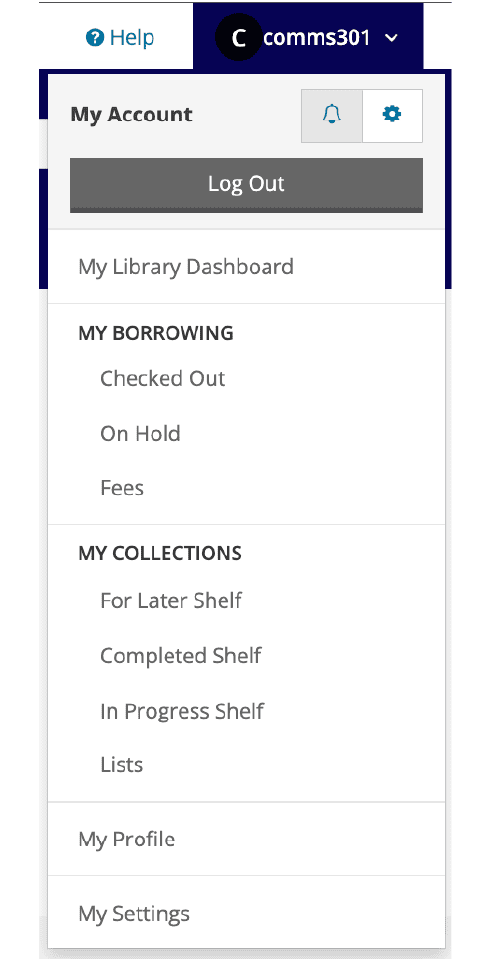
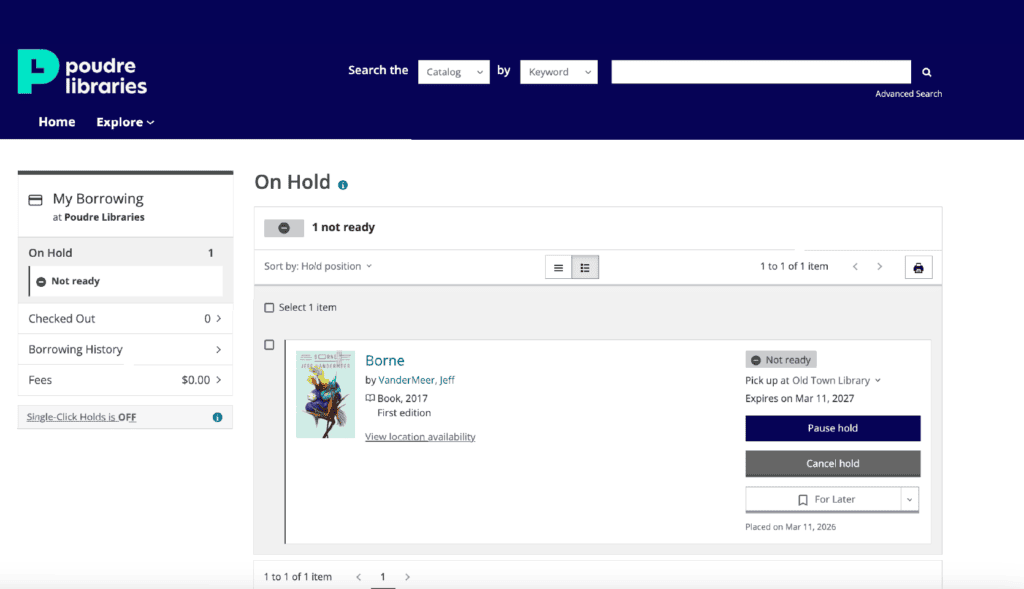
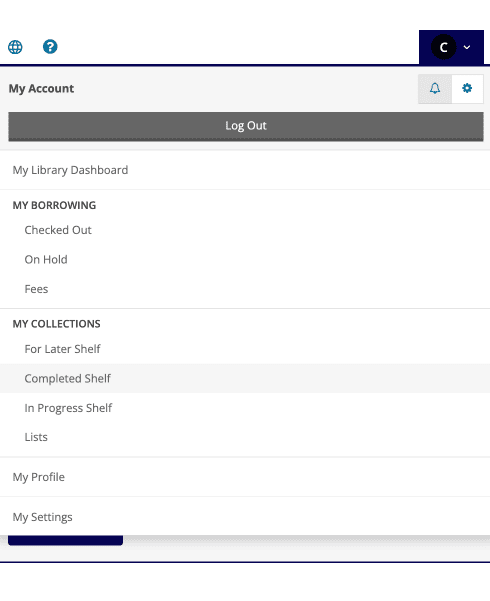
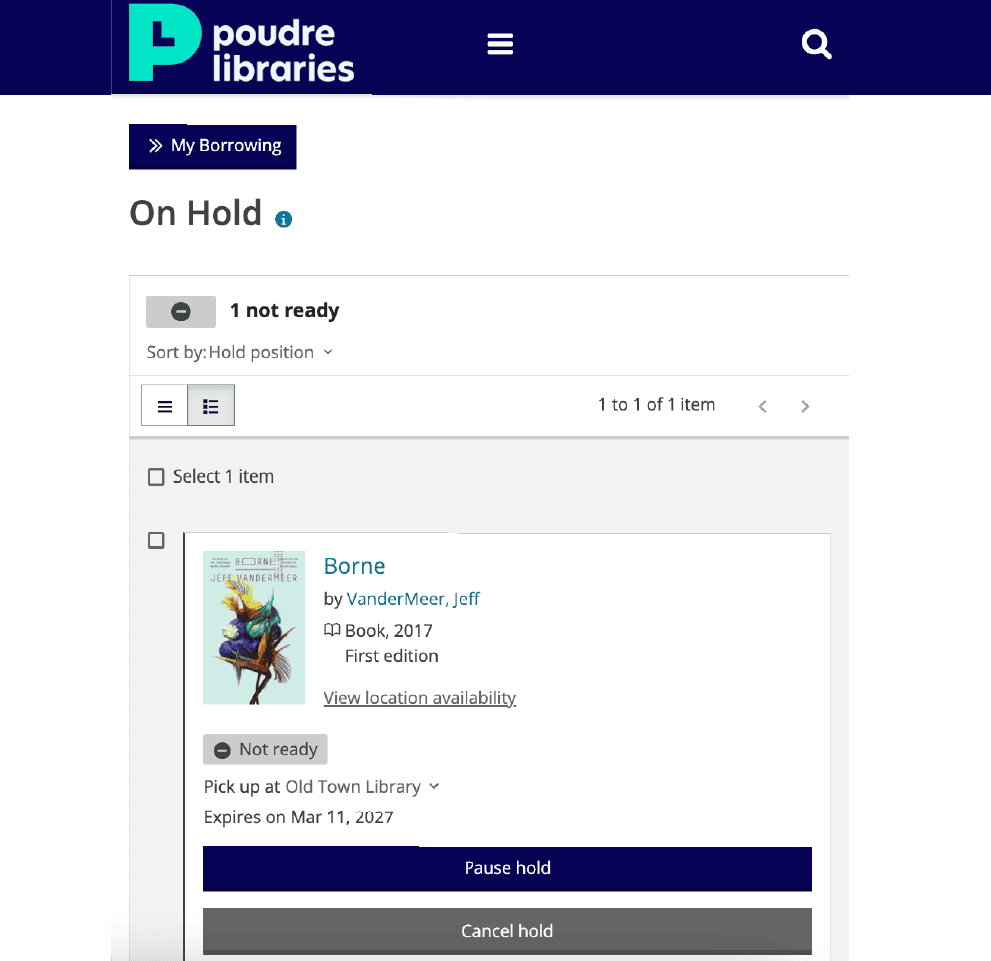
To view your holds, open the account menu in the top right corner of the website and select On Hold. In the left sidebar, you’ll see a summary. Hold items are organized in two stages: not ready, paused, in transit, and ready for pickup.
The item capsule shows everything you need to know about your hold including the format, your place in line, and the pickup location for physical holds. From here you can also pause or cancel your hold.
Desktop Computer View
Mobile Phone View
How do I view my checkouts?
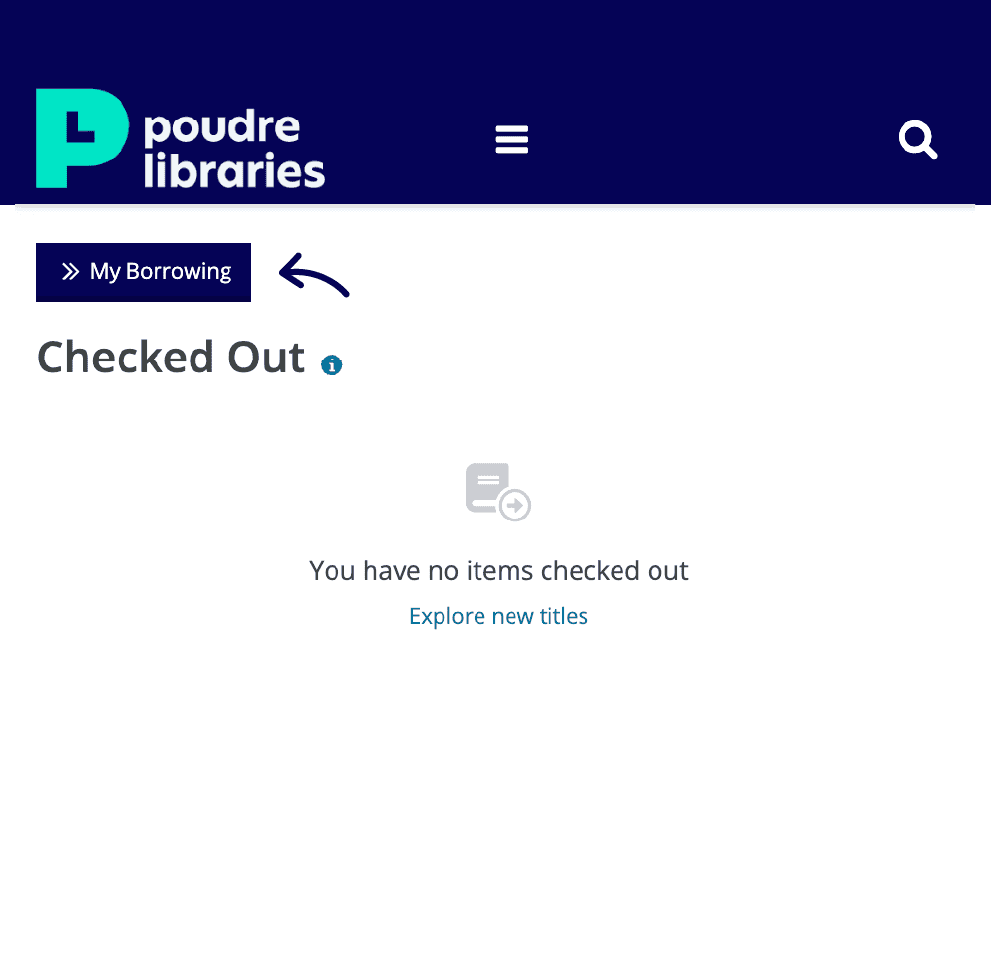
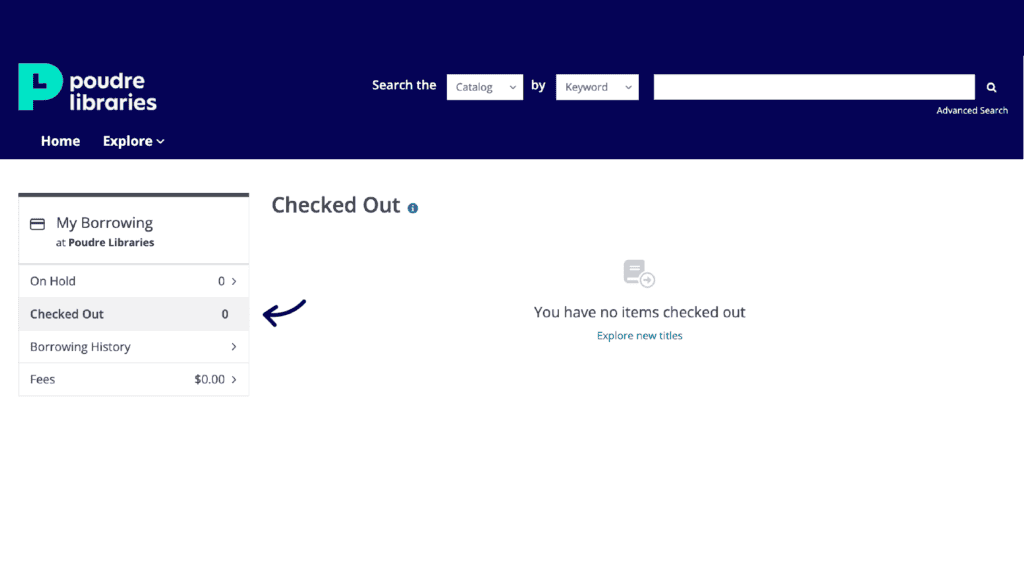
To view your checkouts, open your account’s menu located in the top right corner and select Checked Out. The page will show your current checked out items, their due dates, and an option to renew if possible.
Desktop Computer View
Mobile Phone View
Frequently Asked Questions
Will I lose all my borrowing history?
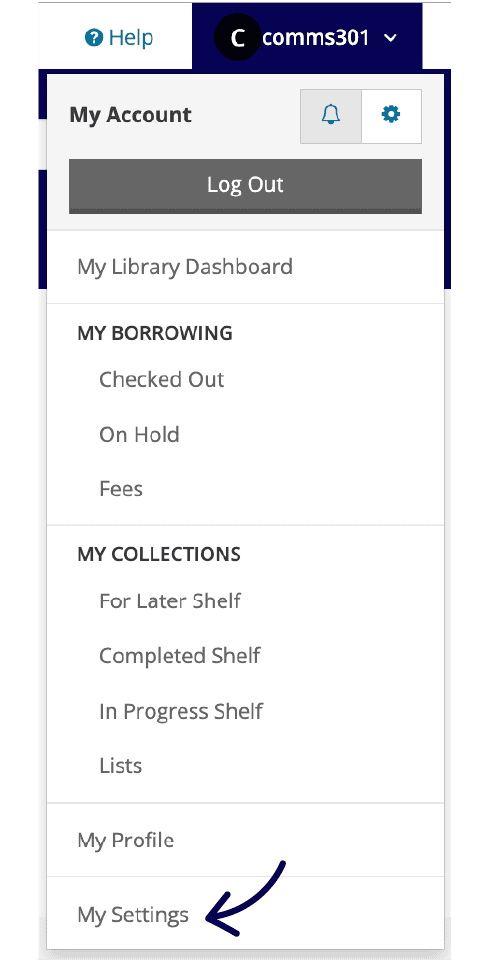
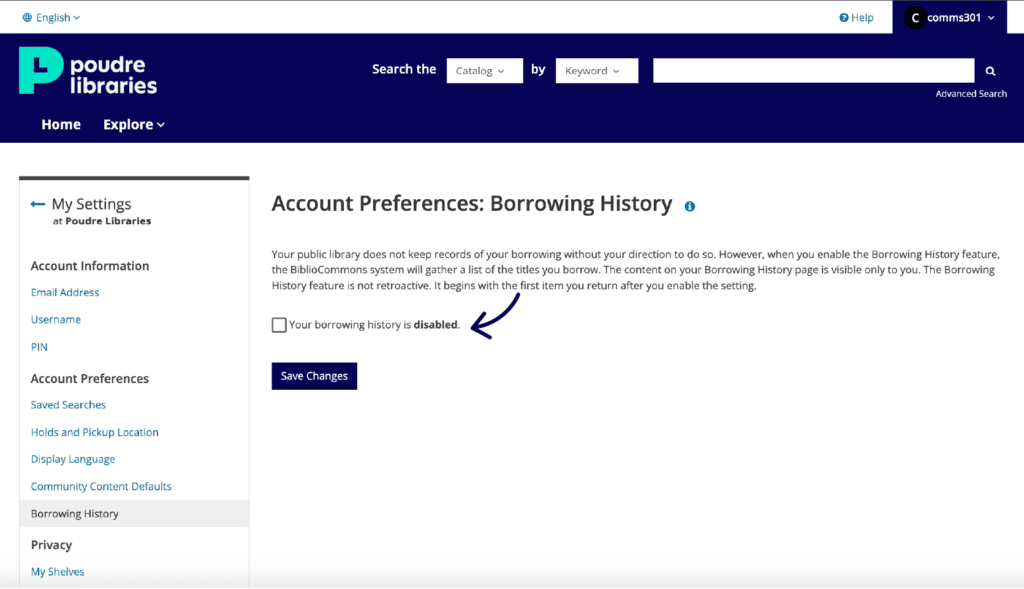
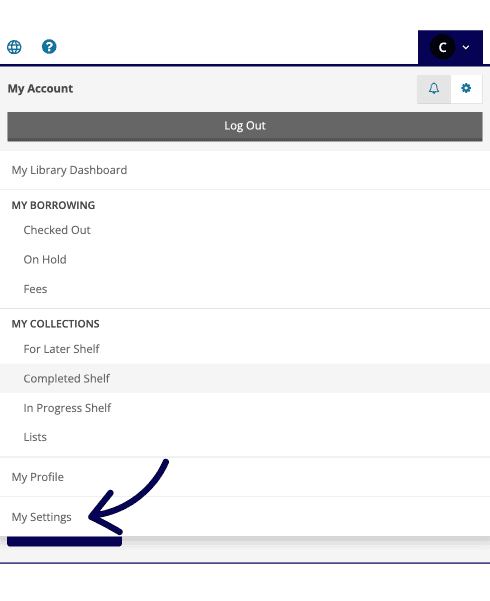
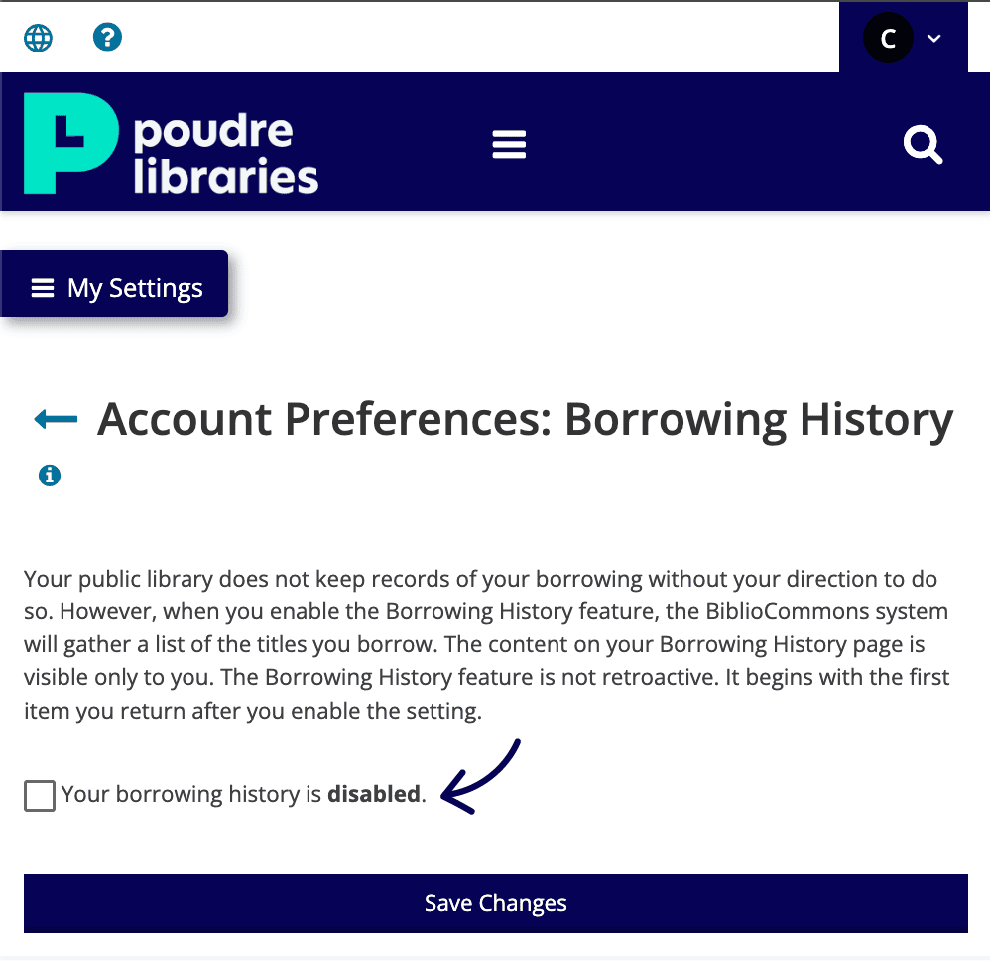
You can enable and transfer your borrowing history. Navigate to your account menu in the top right corner of the page and click “My Settings.” You can enable and transfer your borrowing history under the “Account Preferences.”
Desktop Computer View
Mobile Phone View
Where do I find details about titles?
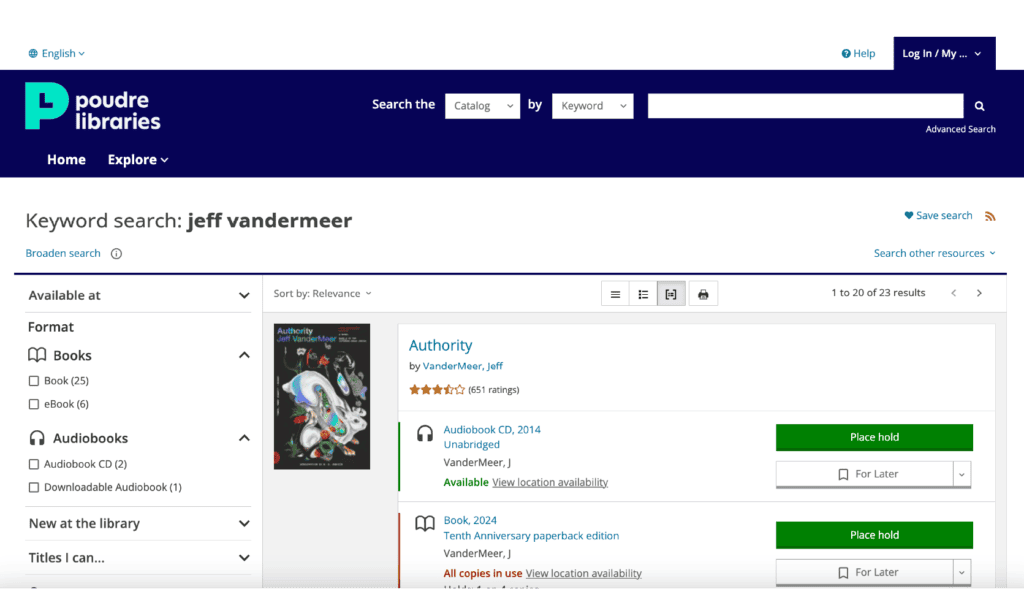
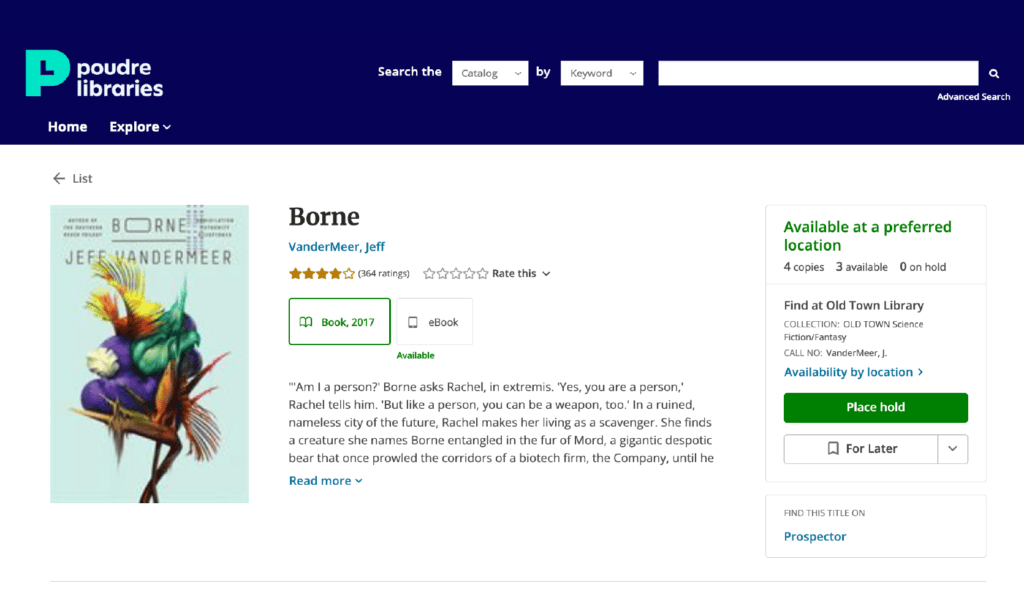
You can view small details about a title like its format, customer and staff ratings, author, and availability from search results. Once you click on a listing, you can read the item description (if available), format, publish date, subject, genre, reviews from other users, and more.
Desktop Computer View
Mobile Phone View
Can I bookmark titles or create lists?
Yes! The new catalog gives users the ability to bookmark titles for later, create reading lists, and more.
Explore how to use your shelves in the catalog to keep track of what you have or plan to read, watch and listen to. You can also learn how to create lists of titles and materials to share with others or keep for your own use.
What if I forgot my password?
- Go to My Account on our website
- Click ‘Forgot your PIN’ below the login information.
- Enter your library barcode number.
- Click ‘Send’ to receive an email with a reset link.
- Open the email and follow the link to set a new PIN.
More information about resetting your password.
Note: If you haven’t don’t have an email on file, contact us by phone at 970-221-6740 or via email for manual reset assistance.
Why do I need to set up an account?
Setting up your account is how you can get started with the new catalog. This account allows you to create an easy-to-remember username you can use to log in, so you don’t have to type your barcode every time you want to check your account.
It also allows you to get personalized recommendations and contribute ratings and reviews in the library’s catalog.
Why do I have to create a username? I have my library barcode memorized.
You can login with your username or your library card number! Whatever works best for you. All users must select a unique username because the new catalog has additional optional functionality, like commenting on books and keeping track of your checkouts. To support this, the catalog requires all users to create a unique username.
Why can’t my child enter a username?
In the United States, children under 13 are not allowed to enter free text on websites without parental approval (per COPPA: the Child Online Privacy Protection Act). Currently, the new catalog – BiblioCore – does not have an option to ensure parental approval, so they created a color/animal/number format for usernames. Once a child turns 13, they will be able to select a username and have other free-text options available.
What happened to my lists?
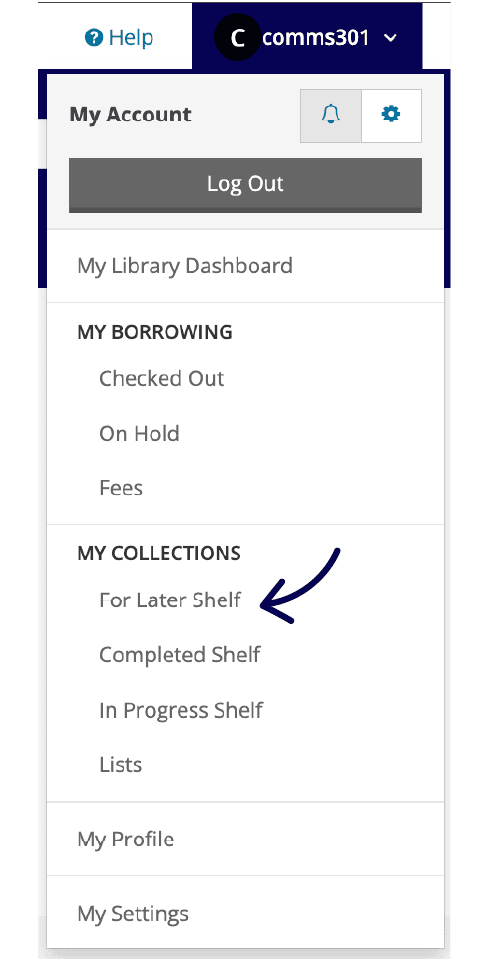
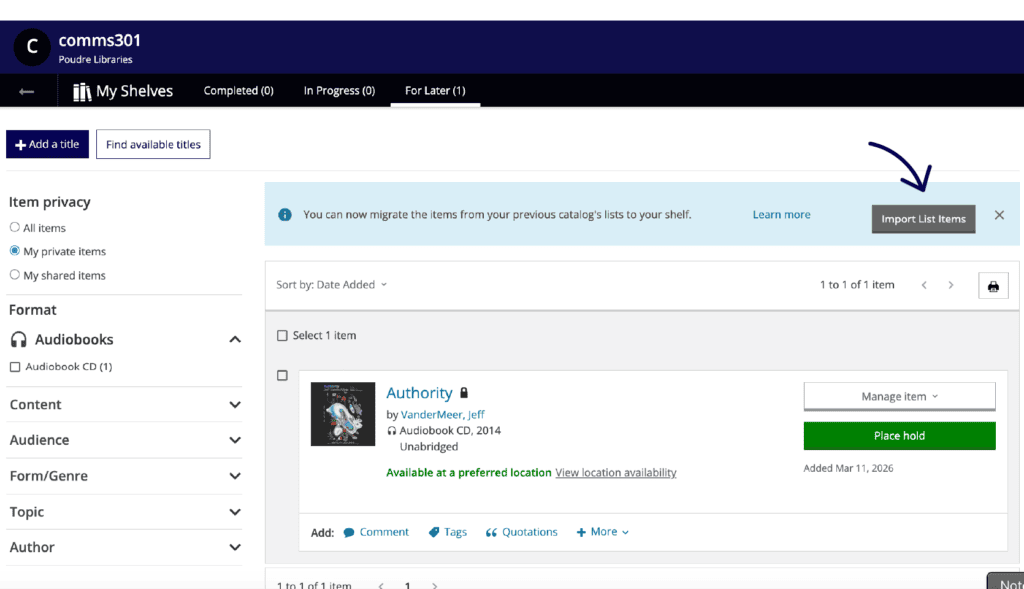
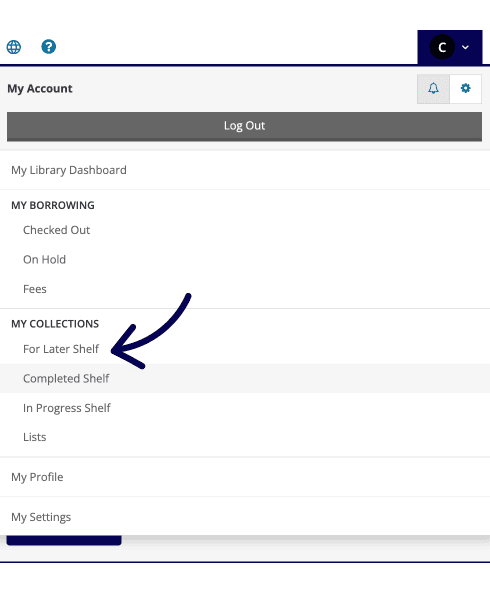
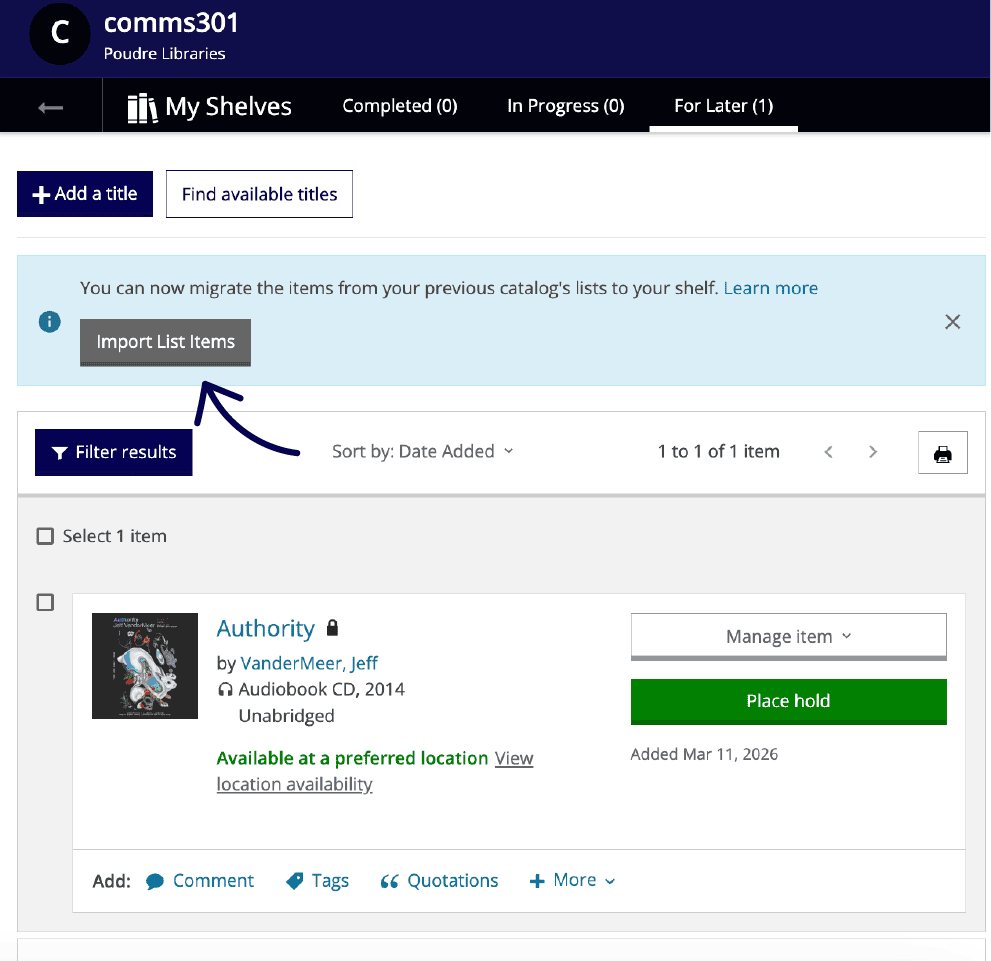
The titles you saved in the previous catalog are not lost. You can import all the items from your wish list onto your “For Later” shelf. Just go to your For Later shelf in the catalog menu in the top right corner, and then click the Import button to import your wish lists from the old catalog.
This is a one-time process, and then you can move items to other shelves or lists as needed.
Desktop Computer View
Mobile Phone View
I can’t figure out where to renew.
Items automatically renew up to three times, unless it is on hold for another customer, or you have $50.00 or more in fees on your account. Renewal periods are the same length as the original loan period. In the new catalog, you will also see options to manually renew the items you have checked out.
- Go to the menu in the right top corner of your screen and then click Checked Out.
- Once you are on your Checked Out page, use the checkboxes to select the desired titles and then click Renew.
Need help?
Explore the new catalog’s extensive guide on how to use its features and search for frequently asked questions. You can also contact us via phone at 970-221-6740 or via email for assistance.